
Overview
Triggers control when a workflow starts. Conditions are decision points inside the workflow that check something about the thread and split the flow into two paths.
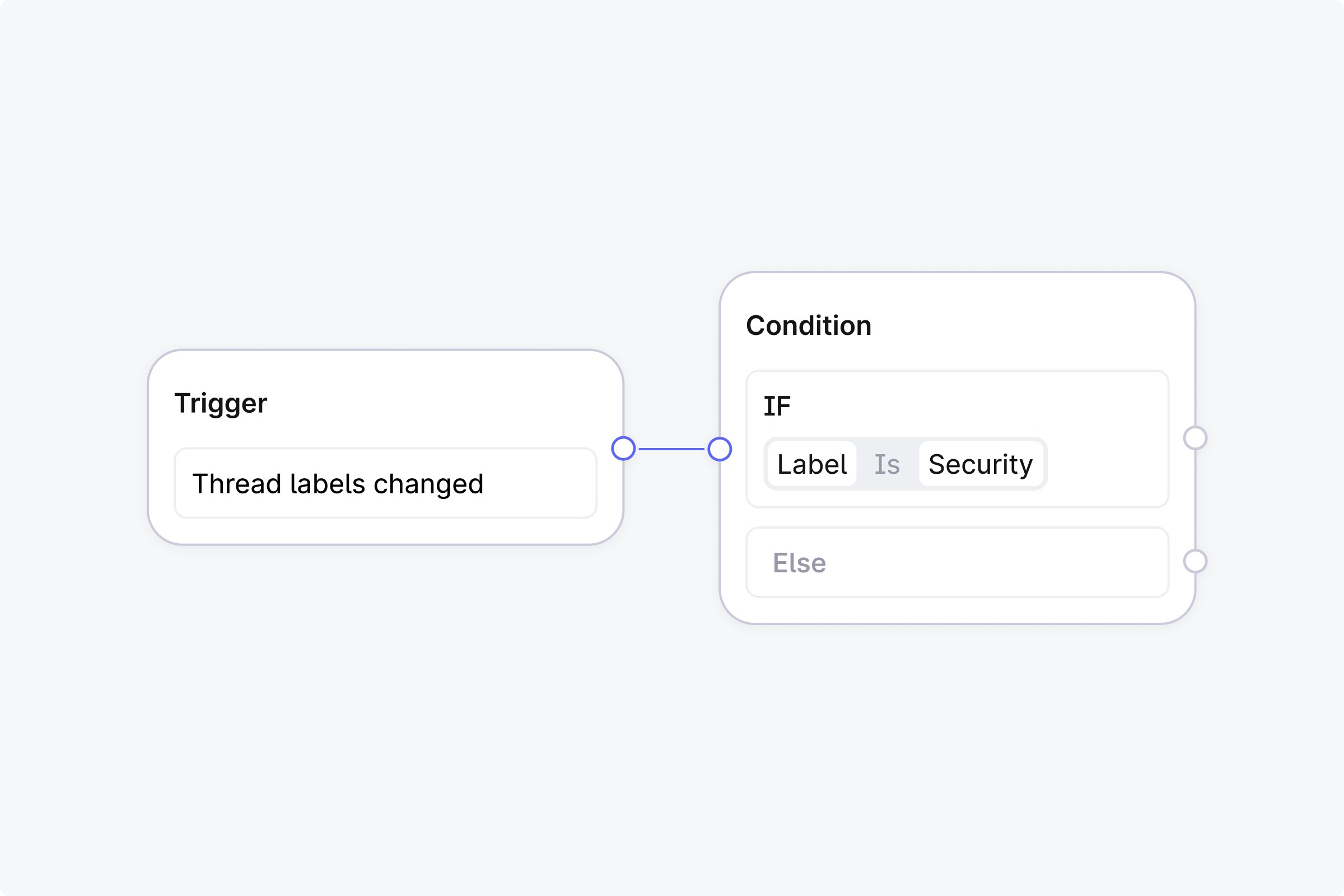
Triggers
Every workflow has a trigger that determines what starts it. You choose the trigger type when creating the workflow.
Manual
You run the workflow yourself. Open a thread, click Run workflow, and select which workflow to run. Useful for on-demand processes like escalation procedures.
Automatic
The workflow runs automatically when a thread event happens. You choose which events during setup:
Thread created
Message added
Labels changed
Tier updated
Thread escalated
Priority changed
Status changed
Thread field created
Thread field updated
You can select multiple events for one workflow. For example, trigger on both "Thread created" and "Message added" to catch new threads and follow-up messages.
Conditions
A condition step checks something about the thread and splits the workflow into branches. By default, a condition has a Yes path and a No path. You can add else-if branches to create more than two paths from a single step.
Thread properties
Condition | What it checks | Example |
|---|---|---|
Priority equals | Thread priority matches a value (Urgent, High, Normal, Low). | Route urgent threads differently. |
Tier equals | Thread is in a specific tier. | Apply enterprise-specific handling. |
Contains label | Thread has a specific label. | Branch based on topic or category. |
Assigned to | Thread is assigned to a specific user or machine user. | Skip assignment if already assigned. |
Status detail equals | Thread status detail matches a value (e.g. Created, In Progress, New Reply, Waiting for Customer, Done). | Branch based on whether a thread is waiting for customer response. |
Customer and company
Condition | What it checks | Example |
|---|---|---|
Company equals | Customer belongs to a specific company. | Route by account. |
Tenant equals | Thread is associated with a specific tenant. | Multi-tenant routing. |
Customer email includes | Customer email contains a string. | Match by domain (e.g. "@bigcorp.com"). |
Channel
Condition | What it checks | Example |
|---|---|---|
Slack channel equals | Thread came from a specific Slack channel. | Different handling per Slack channel. |
Support channel equals | Thread came via a specific channel type (Slack, MS Teams, Email, Chat, Discord, API). | Route by channel. |
Support email equals | Thread was sent to a specific support email address. | Route security@ differently from support@. |
Message content
Condition | What it checks | Example |
|---|---|---|
Any message contains | Any message in the thread contains keywords (case-insensitive). | Detect keywords like "outage" or "billing". |
Any customer message contains | Only customer messages are checked for keywords. | Triage based on what the customer said. |
Any user message contains | Only team member messages are checked for keywords. | Detect internal escalation language. |
Custom fields
Condition | What it checks | Example |
|---|---|---|
Tenant field equals | A tenant field matches a value. Supports string, number, boolean, string array, and datetime. | Route based on customer plan type stored in tenant fields. |
Thread field equals | A thread field matches criteria. Supports equals, contains (strings), greater/less than (numbers). | Filter by custom metadata. |
Advanced
Condition | What it checks | Example |
|---|---|---|
AI prompt match | AI evaluates a natural language prompt against the thread (max 2500 chars). Requires Plain AI. | "Match if the customer shows obvious signs of frustration (e.g. strong complaints, urgency, dissatisfaction with the product or support)" |
Outside business hours | Thread was created outside your configured business hours. | Auto-respond outside working hours. |
Combining conditions
You can combine multiple conditions using logical operators:
All of (AND): every condition must be true.
Any of (OR): at least one condition must be true.
Not: inverts a condition (e.g. "does NOT have label").
You can nest these operators. For example: "Thread has label 'VIP' AND is NOT assigned to anyone."
Multi-branch conditions (else if)
You can add else-if branches to any condition step to route threads across more than two outcomes without chaining multiple steps together.
Branches are evaluated top to bottom. The first branch whose condition matches determines the path. If no branch matches, the workflow takes the Else path (if you've added one).
To add a branch, open a condition step in the workflow builder and click Add else-if branch in the condition panel.
Example: Triage security emails with AI
Route threads from your security@ email address using AI to separate vulnerability reports from general inquiries.
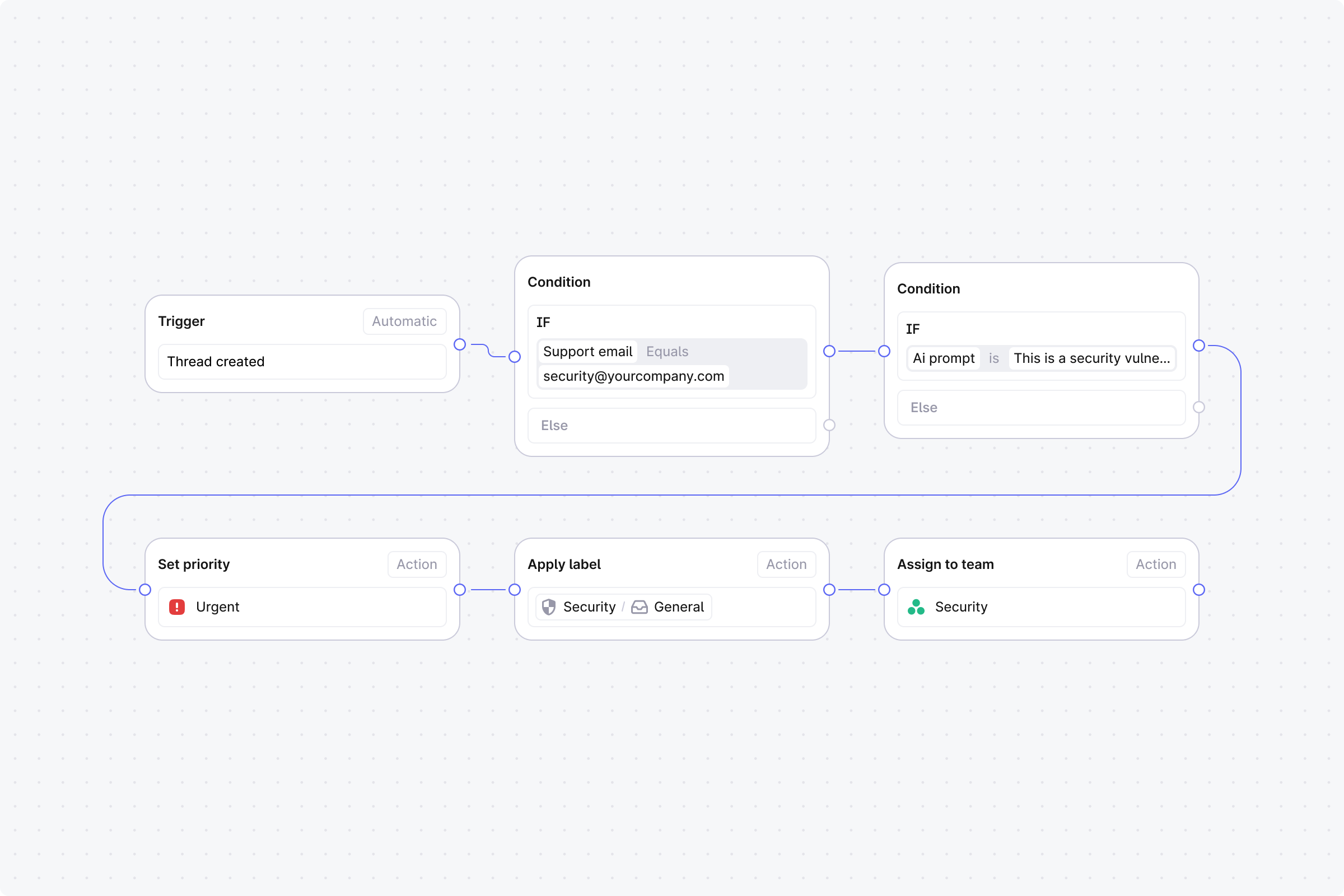
Setup
Trigger: Set to Automatic, event: Thread created.
Step 1 (Condition): Support email equals security@yourcompany.com.
No: End the workflow.
Yes: Continue.
Step 2 (Condition): AI prompt match with: "This is a security vulnerability report or disclosure".
Yes: Continue to Step 3.
No: Skip to Step 5.
Step 3 (Action): Set priority to Urgent.
Step 4 (Action): Assign to user. Select your security lead. End this branch.
Step 5 (Action): Apply labels. Select Security - General.
Step 6 (Action): Assign to team. Select your security team.
Start simple. Build a workflow with 2-3 steps first, test it on a few threads, then add complexity. You can always edit later. Just unpublish, make changes, and republish.