
Tasks
Tasks help you turn conversations into actionable to-do lists and coordinate internally without leaving Plain. Use them to track follow-ups, internal action items, or anything else that needs to get done.
Tasks are available in full on all plans. You can also disable Tasks in your workspace settings if you prefer not to use them.
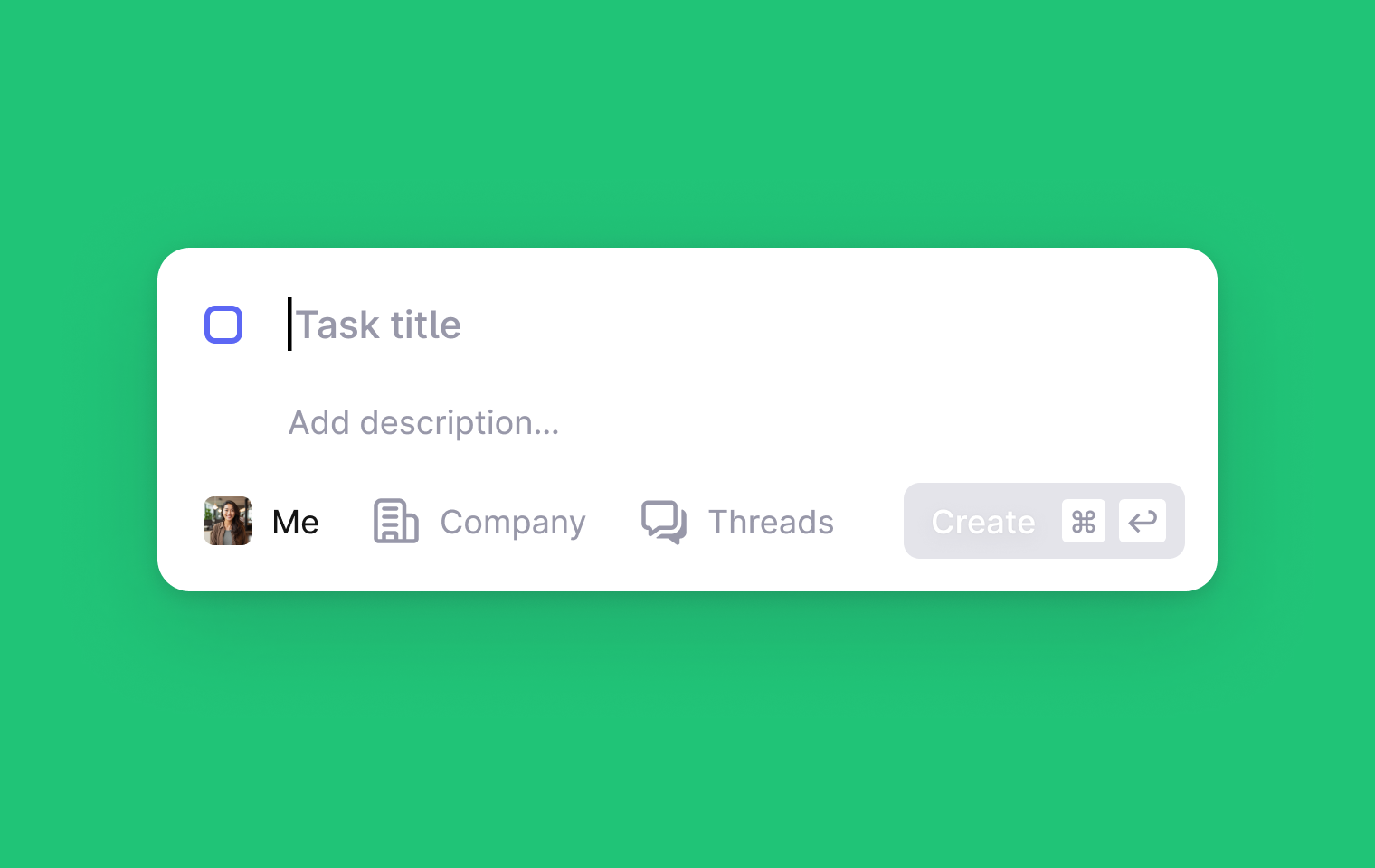
What are tasks for?
Tasks bridge the gap between customer conversations and internal work. Instead of context-switching to external project management tools, you can create and manage tasks directly within Plain, keeping everything connected to the relevant threads.
Example use cases
Feature requests to investigate: A customer asks about SSO for their enterprise plan. Create a task to research and follow up, linking it to multiple related threads.
Bug investigations: A customer reports webhook delivery failures. Create a task assigned to the right team member, linked to the company.
Follow-up reminders: A customer's CSV export is timing out for large datasets. Create a task to investigate and link it to the original thread.
Creating tasks
You can create tasks in several ways:
From anywhere in Plain
Press t to create a task from anywhere. If you're viewing a thread, company, or tenant page, the task will automatically pre-fill relevant context (linking the current thread or setting the company/tenant).
From the Tasks page
Navigate to the Tasks page and click Create task or press t.
From a thread
In the thread sidebar, find the Tasks section and click the + button. You can either link an existing task from the picker or create a new task.
Via Sidekick
You can also ask Sidekick to create tasks for you based on the context of the thread you're viewing. Tasks you create via Sidekick will be auto-linked to the current thread and assigned to yourself.
Viewing tasks
Tasks page
The main Tasks page shows all tasks in your workspace, organized into three tabs:
My tasks – Tasks assigned to you that haven't been completed
All tasks – All Todo tasks across the workspace
Done – Completed tasks
Click any task to open its details in a sidebar.
Company and Tenant pages
Each company and tenant page includes a Tasks tab. This tab shows:
Tasks explicitly linked to that company or tenant
Tasks linked to that company or tenant via a linked thread (even if the task itself isn't explicitly linked to the company/tenant)
For example, if you create a task and link it to a thread from Acme Corp, that task will appear on Acme Corp's Tasks tab – even if you didn't directly assign the task to that company.
Thread sidebar
The thread sidebar shows all tasks linked to the current thread under the Tasks section. You can mark tasks as done or change their assignee directly from this list.
Deleting tasks
Open the task details sidebar and use the overflow menu (⋯) to delete a task. Deleted tasks are removed from all views.
Deleting a task is final – there is no way to recover deleted tasks at the moment.