
Pause workflows with wait steps
Wait steps pause your workflow for a set duration before continuing. Use them to give customers time to respond, build escalation timers, or schedule follow-ups.
How wait steps work
A wait step pauses the workflow for a duration you set, from 1 second up to 1 year. While paused, the workflow execution status shows as Waiting. When the duration ends, the workflow continues to the next step.
Each wait step has two branches:
Completed: the full duration passed. The workflow continues to the connected step.
Cancelled: a cancel condition was met before the duration ended. The workflow takes a different path.
Cancel conditions
You can add a cancel condition to any wait step. This lets you end the wait early when something changes on the thread.
The cancel condition is checked at two points:
When the wait starts. If the condition is already true, the workflow skips the wait and takes the cancelled branch immediately.
When the thread updates. Any change to the thread (new message, label change, assignment change) triggers a re-check. If the condition is now true, the wait ends and the workflow takes the cancelled branch.
Cancel conditions use the same types as condition steps. See Triggers and conditions for the full list.
A common pattern is to cancel a wait when the customer replies. Use the Any customer message contains condition, or an AI prompt match like "customer has responded to the follow-up".
Limits
Minimum duration: 1 second
Maximum duration: 1 year (31,536,000 seconds)
When to use wait steps
Follow-ups: send a message, wait 24 hours, then check if the customer replied. If not, send a reminder or close the thread.
Escalation timers: wait 5 minutes after an urgent thread is created. If no one picks it up, auto-assign to a manager.
Business hours: acknowledge a thread that arrives outside business hours, wait until morning, then assign to the team.
For complete walkthroughs, see Workflow examples.
Monitoring waits
Open a thread and check its workflow execution history to see active waits. Each wait step shows:
The scheduled completion time
Whether it was cancelled or completed
Which branch the workflow took next
Example: Follow up with inactive customers
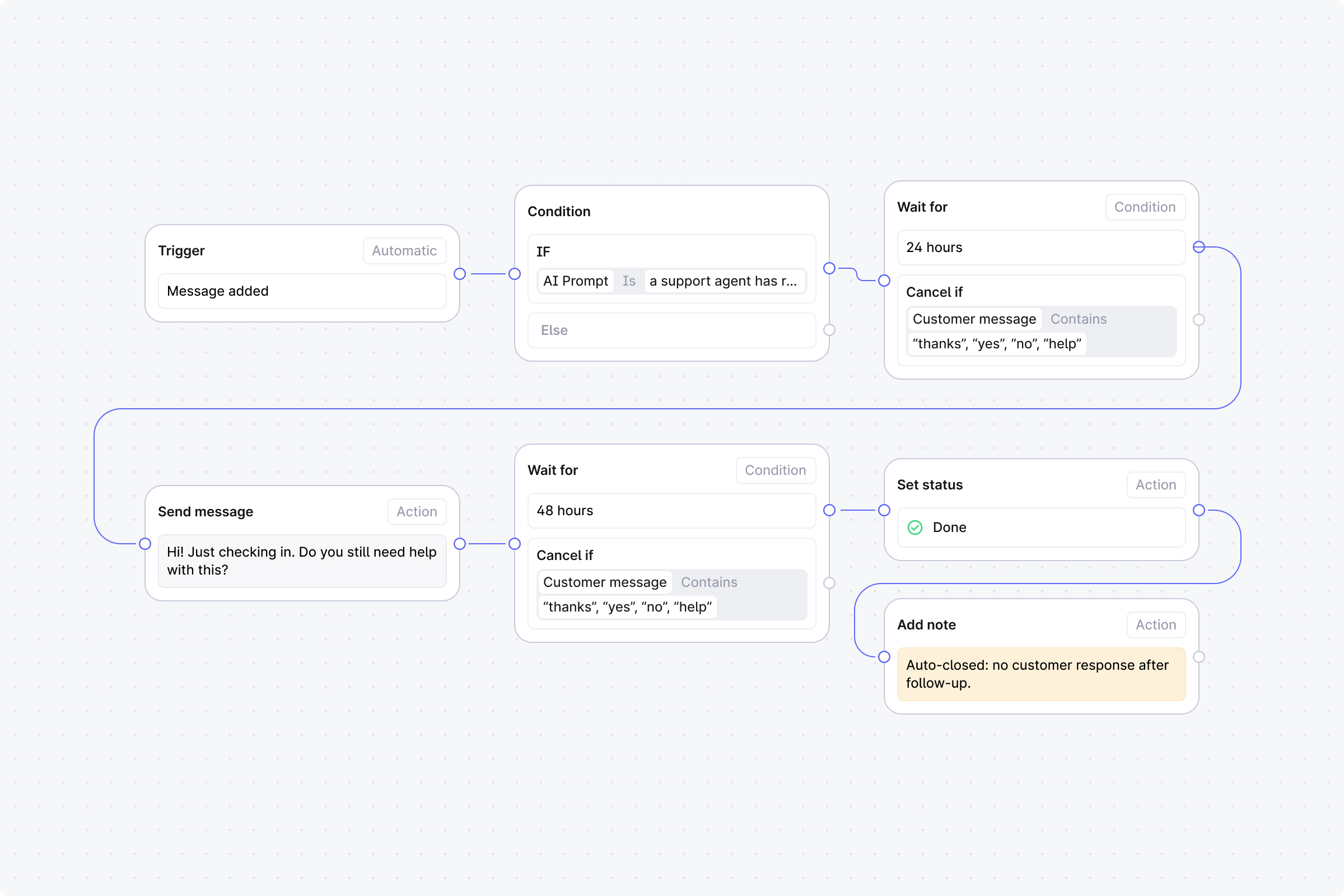
After your team replies, wait 24 hours. If the customer hasn't responded, send a follow-up. If still no response after 48 more hours, close the thread.
Setup
Trigger: Set to Automatic, event: Message added.
Step 1 (Condition): Use an AI prompt match with: "a support agent has replied to the customer". Or use Any user message contains with keywords.
No: End the workflow.
Yes: Continue.
Step 2 (Wait): Duration: 24 hours. Cancel condition: Any customer message contains common reply words (e.g. "thanks", "yes", "no", "help").
Cancelled: End the workflow. The customer replied.
Completed: Continue.
Step 3 (Action): Send message. Enter: "Hi! Just checking in. Do you still need help with this?"
Step 4 (Wait): Duration: 48 hours. Same cancel condition as Step 2.
Cancelled: End the workflow. The customer replied.
Completed: Continue.
Step 5 (Action): Set status to Done (manually set).
Step 6 (Action): Add note. Enter: "Auto-closed: no customer response after follow-up".
Start simple. Build a workflow with 2-3 steps first, test it on a few threads, then add complexity. You can always edit later. Just unpublish, make changes, and republish.