
Customer cards
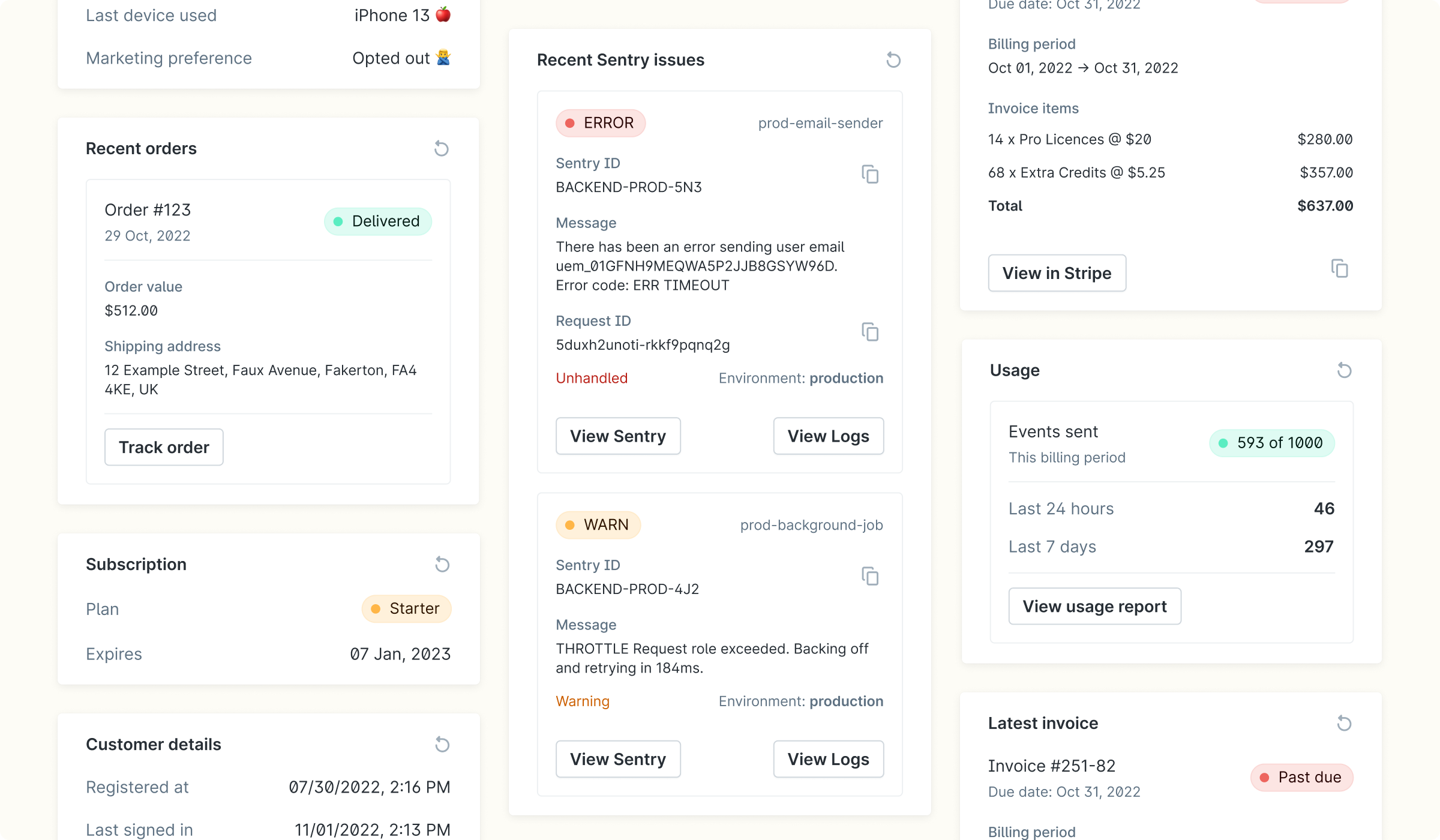
March 25, 2026 - Customer cards now support workflow buttons. Your team can trigger a Plain workflow directly from any customer card, without leaving the thread.
Customer cards display live information from your own systems alongside every thread in Plain. When your team opens a conversation, they see whatever your API returns for that customer: subscription status, recent orders, usage data, active errors.
This ensures that you always have important context at your fingertips, without having to jump through different tabs and admin tools.
What you can show
You control what appears on a card. Your API returns the data; Plain displays it. Here are common examples of what teams build.
Subscription status
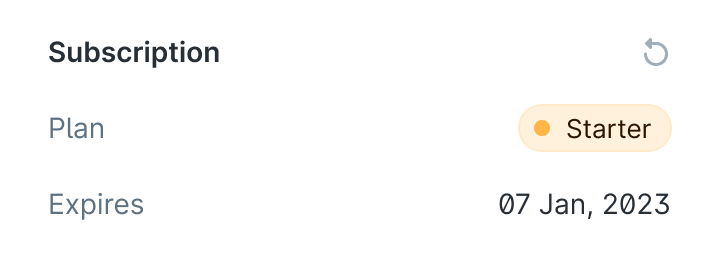
When a customer questions their plan or a feature they expected to have, this card has the answer. It shows the customer's plan name as a colour-coded badge and their expiry date. Agents can confirm whether the customer is on the plan they think they're on and when it renews, without opening your billing system.
Latest invoice
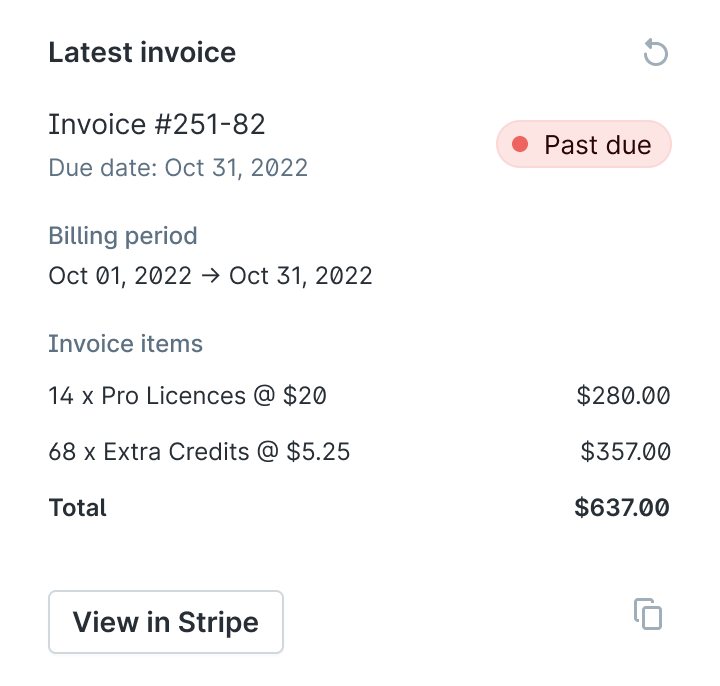
If a customer disputes a charge or says their invoice looks wrong, an invoice card gives agents everything they need to verify it. It shows the invoice number and due date, a status badge (including "Past due" in red if payment hasn't cleared), the billing period, a line-item breakdown with amounts, the total, a link to your billing system, and a copy button for the invoice number.
Usage
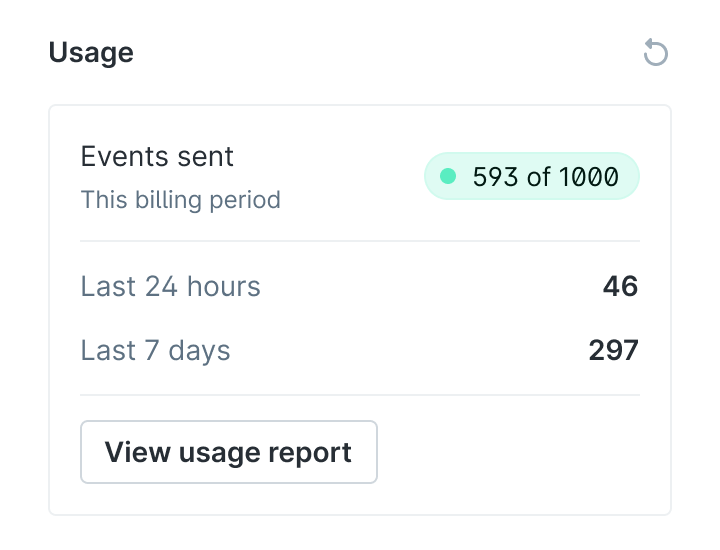
Most useful when a customer says they've hit a limit, wants to understand an overage charge, or is deciding whether to upgrade. A usage card shows how much of their allowance has been used in the current billing period as a badge (for example, "593 of 1000"), broken down by the last 24 hours and last 7 days, with a link to the full usage report.
Error tracking
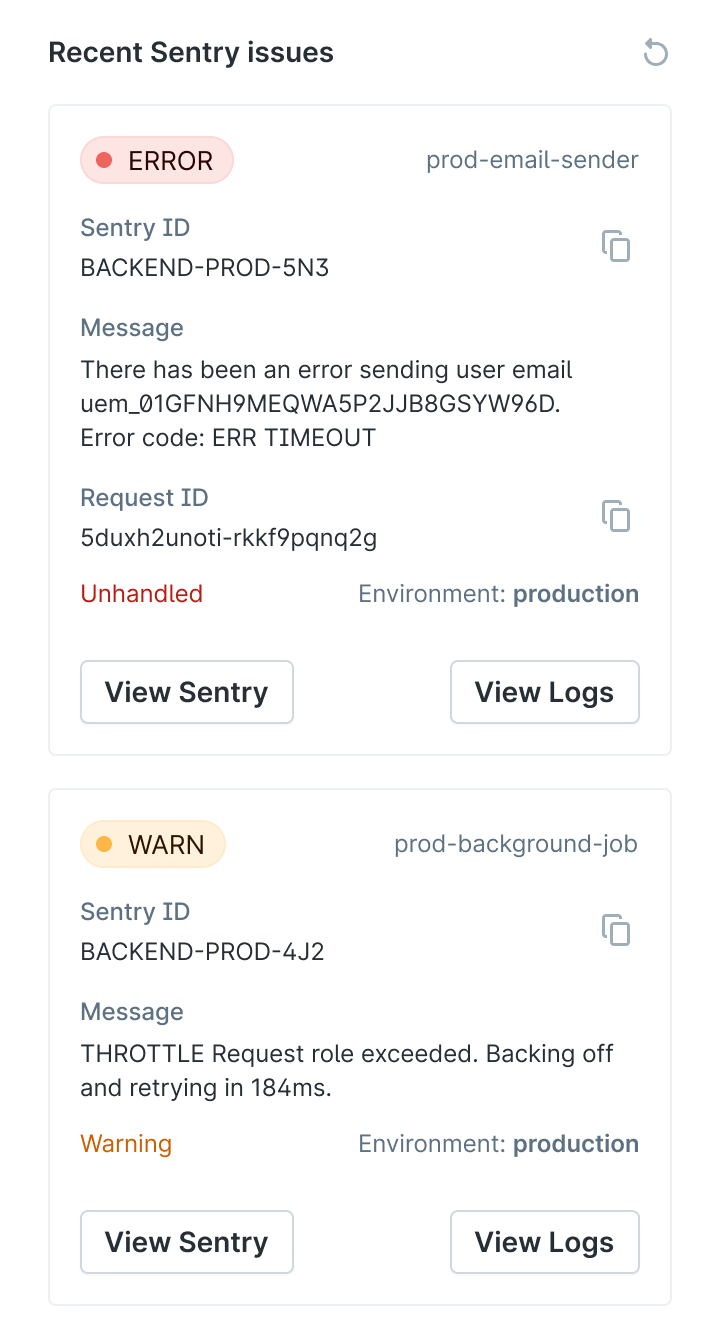
When a customer reports a bug or unexpected behaviour, an error card shows what actually happened. It pulls in recent errors from your monitoring tool (Sentry in the example below). Each error shows a severity badge (ERROR in red, WARN in yellow), the service name, a Sentry ID with a copy button, the full error message, a request ID with a copy button, the environment, and whether the error was handled or unhandled. Links to Sentry and your logs sit at the bottom of each entry. Agents can see what the customer ran into before they even finish describing the problem, and copy relevant IDs directly into their response or an internal note.
Account details
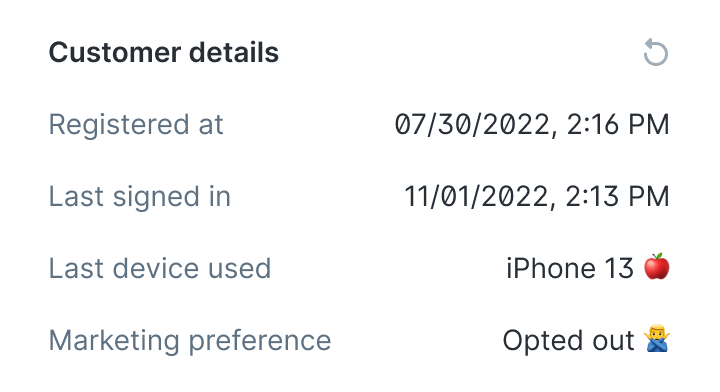
Useful for identity verification, login issues, or checking communication preferences before sending something. The card shows when the customer registered, when they last signed in, what device they used most recently, and their marketing opt-in status. Agents often check this first when a customer says they can't access their account or when something about the account history seems off.
Order history
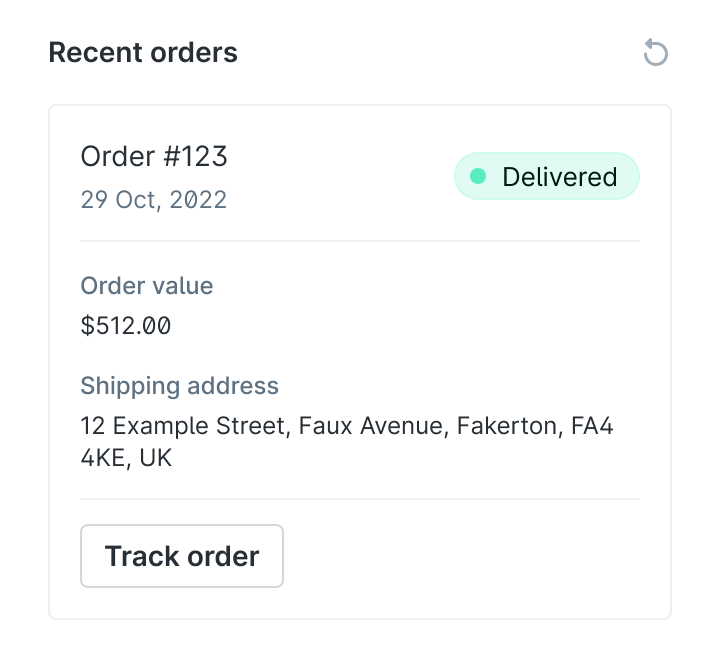
When a customer follows up on a delivery or reports an issue with an order, this card shows the order number, date, delivery status as a badge, order value, shipping address, and a tracking link. Enough to handle most order questions without opening your fulfilment system.
Workflow buttons
A workflow button on a customer card lets your team trigger a Plain workflow for the current thread in one click. The workflow runs in the context of that thread, so any actions it performs (assigning, labelling, firing a webhook) apply to the thread the agent is viewing.
You configure which workflow the button triggers. Your API controls whether the button appears at all, based on your own logic. For example, you might only show a "Resync billing" button when the customer's billing status indicates an error.
Common uses:
Resyncing a billing record
Account operations like renaming a team or allowlisting a user
Triggering an escalation or triage workflow
How it works
Customer cards are configured in Plain and loaded when a thread is opened. Plain sends a POST request to an API endpoint you provide, passing the customer's details and the card keys you've configured. Your API responds with the components to display. Cards are cached based on a TTL you set in the response.
Your developer builds and maintains the API endpoint. You configure which cards appear in Plain settings and set the card keys and URL.
The technical documentation covers the request format, response schema, available components, and caching behaviour.
Try the examples
The example cards repo is a working API you can point at your workspace. Each card is available at:
https://example-customer-cards.plain.com/?cardKey=CARD_KEY
Card | Key |
|---|---|
Subscription status |
|
Latest invoice |
|
Usage |
|
Sentry errors |
|
Account details |
|
Last order |
|
Workflow button |
|
To add one: go to Settings -> Customer Cards, click Add card, enter the URL above with the relevant key, and open any thread to see it load.