
Workflow Actions
Actions are the steps in your workflow that do something: assign a thread, update a property, send a message, or call an external service. Each action runs and then moves to the next step. To add one, click + on the canvas and choose an action type.
Assignment
Assign to user
Assigns the thread to a specific user or machine user. If the thread already has an assignee, the new user is added as an additional assignee rather than replacing the existing one.
This action is skipped if the selected user is on break, away, or offline.
Example: Route VIP threads to a dedicated account manager.
Assign to company account owner
Assigns the thread to the account owner of the customer's company.
This action is skipped if the customer has no company, the company has no account owner, or the owner is unavailable.
Example: Make sure enterprise customers always reach their account owner first.
Assign to team
Distributes the thread using round-robin assignment across team members identified by a label. The thread goes to the available member with the fewest open threads. You can set a max capacity per member. The team label is also applied to the thread.
Example: Spread incoming threads evenly across your support team.
Unassign thread
Removes all assignees from the thread.
Example: Clear the current assignment before re-routing based on new conditions.
Thread properties
Set priority
Sets the thread priority to one of:
Urgent
High
Normal
Low
Example: Auto-escalate threads containing "outage" to Urgent.
Set tier
Moves the thread to a specific tier. Skipped if the thread is already in that tier.
Example: Route enterprise customers to a premium support tier.
Set status
Changes the thread status to one of:
Created
New Reply
In Progress
Thread Link Updated
Waiting for Customer
Ignored
Done
Plain infers the parent status (Todo, Snoozed, Done) automatically based on the status you set.
Example: Mark threads as "Waiting for Customer" after sending a follow-up.
Set escalation path
Assigns the thread to an escalation path. Skipped if the specified path does not exist.
Example: Move urgent unresolved threads into a structured escalation flow.
Apply labels
Adds one or more labels to the thread. Labels already on the thread and archived labels are skipped.
Example: Auto-tag threads from specific channels or matching certain keywords.
Messages and notes
Send message
Sends a message to the customer. Supports plain text, markdown, and HTML.
To prevent duplicates, Plain checks the last 50 timeline entries within a 5-minute window. If an identical message already exists, the action is skipped.
Example: Send an auto-acknowledgment when a thread is created outside business hours.
Add note
Adds an internal note to the thread. Notes are only visible to your team, not the customer. Supports plain text, markdown, and HTML.
Plain prevents duplicate notes if the same workflow runs on the same thread.
Example: Leave context for the next agent about why the thread was routed a certain way.
Customer
Add to customer group
Adds the customer to one or more customer groups. Groups the customer already belongs to are skipped.
Example: Segment customers automatically based on thread content or channel.
Integrations
Send HTTP request
Sends an HTTPS POST request to any external endpoint. You configure the URL, headers, and a JSON body. The request runs in the background after the workflow step completes.
Use this action to connect your workflows to any service that accepts webhooks or API calls:
Post to a Slack channel with a Slack incoming webhook
Create a Linear issue through the Linear API
Trigger a PagerDuty incident with their Events API
Send a notification to Discord with a Discord webhook
Call your own internal API to run custom logic
The request body supports variable interpolation. Available variables:
{{ customer.email }},{{ customer.fullName }},{{ customer.shortName }}{{ thread.ref }},{{ thread.id }},{{ thread.externalId }},{{ thread.title }},{{ thread.description }}{{ workspace.id }}
Example body:
{
  "threadId": "{{ thread.id }}",
  "customer": "{{ customer.email }}",
  "title": "{{ thread.title }}"
}
This action uses the same security measures and retry policy as Plain webhooks.
Actions run in sequence. If an action fails, the workflow stops and is marked as failed. Put your most important actions first.
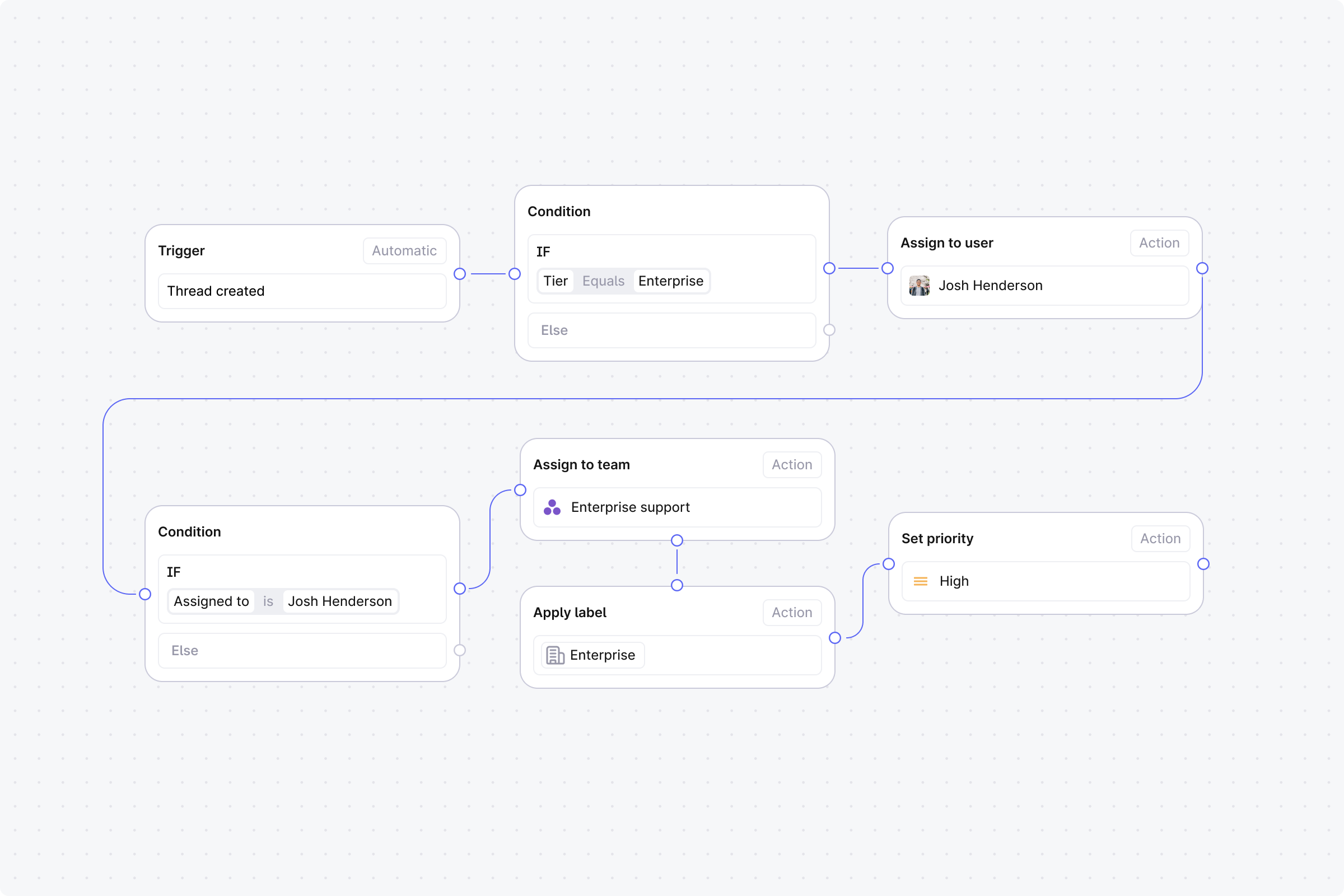
Example: Route enterprise threads to account owners
When a thread is created, check if the customer is enterprise tier. If yes, assign it to their account owner. If no account owner is set, fall back to the enterprise support team.
Setup
Trigger: Set to Automatic, event: Thread created.
Step 1 (Condition): Tier equals Enterprise.
No: End the workflow. Default routing handles it.
Yes: Continue.
Step 2 (Action): Assign to company account owner.
Step 3 (Condition): Assigned to checks if someone is now assigned. This confirms the account owner assignment worked.
Yes: End the workflow. The account owner is assigned.
No: Continue.
Step 4 (Action): Assign to team. Select your enterprise support team label.
Step 5 (Action): Apply labels. Select Enterprise.
Step 6 (Action): Set priority to High.
Start simple. Build a workflow with 2-3 steps first, test it on a few threads, then add complexity. You can always edit later. Just unpublish, make changes, and republish.